The eastern US, including Washington DC, New York, and Philadelphia, are preparing for what could be a powerful winter storm this weekend. If the electricity goes out, that doesn’t mean your connection to the world has to go out with it.
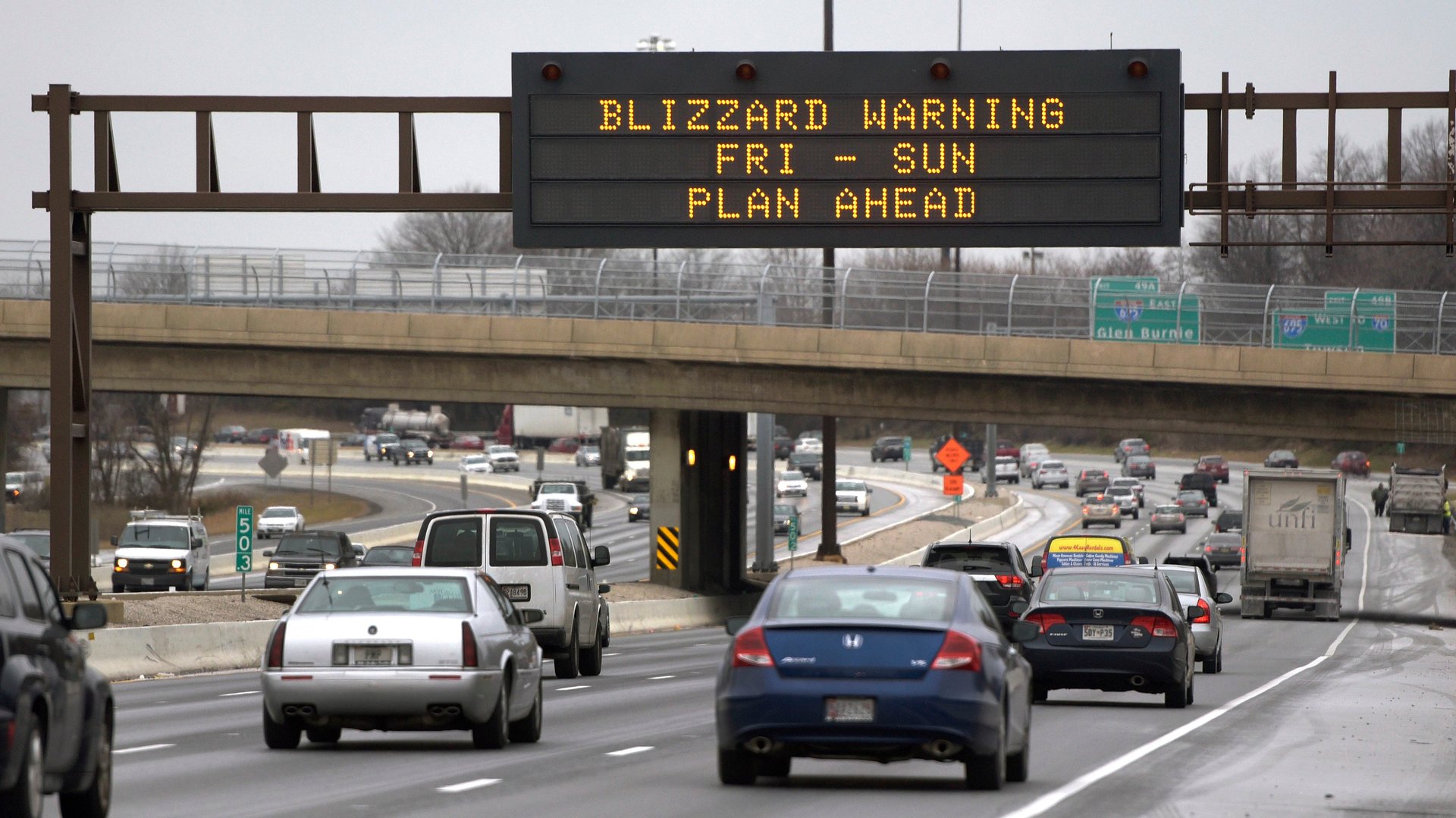
The eastern US, including Washington DC, New York, and Philadelphia, are preparing for what could be a powerful winter storm this weekend. If the electricity goes out, that doesn’t mean your connection to the world has to go out with it.
In 2012, as Hurricane Sandy started dumping rain, Quartz’s former technology editor Christopher Mims produced a guide to making sure your mobile phone stays powered up, even if it takes several days for the lights to come back on. We’ve updated and lightly edited this advice, mainly to reflect changes in phone settings and functions.
Join 500,000+ readers who start their day with Quartz.
By subscribing, you agree to our Terms of Service and Privacy Policy.
It’s easy to forget that our phones charge when they are plugged into our laptops via the USB port. This works even when your laptop is not connected to a power outlet. To get the most out of this trick, quit all apps (or even reboot your machine), dim the screen to nothing, and don’t use it for any other purpose. Just plug your phone in when the phone gets low on charge and allow it to parasitically drain your laptop’s (much larger) battery.
If you have spare USB mobile-phone chargers or battery cases, make sure they’re charged, too. And charge up your tablet, especially if it has its own cellular function—it might come in handy.
Your phone’s radios are the major drain on battery life. If you want to leave the phone connected to the cell network in case of emergency text messages or incoming calls, but you don’t need to browse the internet, turn off Wi-Fi to preserve battery life, as well as the Bluetooth radio that the phone uses to communicate with headphones, fitness trackers, and other accessories.
On an iPhone, these radios can be turned off on the “settings” screen, or by pulling up the control panel by swiping up from the bottom of any window. Put the phone in “Airplane mode” or turn it off entirely if you aren’t using it and aren’t anticipating incoming calls or texts you might need. Or see Apple $AAPL’s instructions for the iPhone’s “low power mode” (introduced in iOS 9) to use its battery more efficiently.
Simple enough.
News services and various apps send you “push” notifications that require your phone to power up just a bit in order to receive data from a remote location. Here’s how to switch them off in Android and on the iPhone. Turning all of these off will minimize the use of those battery-hogging radios. On an iPhone, you can also turn off “location services,” which work in a similar way.
On an iPhone or Android device, the “Battery” option in settings displays a list of the apps that are using the most battery power. If something is using power in the background, you can revoke background access. On an iPhone running iOS 9, go to Settings > General > Background App Refresh, where you can disable access on an app-by-app basis. Here’s advice for an Android phone.
Displays on phones are the other major battery hog. Turn down the display to the lowest level at which you can still read it.
Text messages are tiny amounts of data, sent quickly, and do not tax your phone’s batteries the way a phone conversation does. Plus, texts are more likely to get through when the cell network is overwhelmed.
Sure, if you have a car, you should already own one of these items, but in a pinch, maybe your neighbor has one.
This may seem obvious, but it’s easy to forget, in our fiddly, always-on age that you can step away from your mobile device when you don’t need it for periodic updates on the progress of the storm.
