Are you tired of swear word typos? Turning “dicks” into “docks” and “shits” into “shots”? Well, it’s time to escape the puritanical garden tended by Apple and Google. Here’s how to make profanity part of your smartphone’s vernacular.
Are you tired of swear word typos? Turning “dicks” into “docks” and “shits” into “shots”? Well, it’s time to escape the puritanical garden tended by Apple $AAPL and Google $GOOGL. Here’s how to make profanity part of your smartphone’s vernacular.
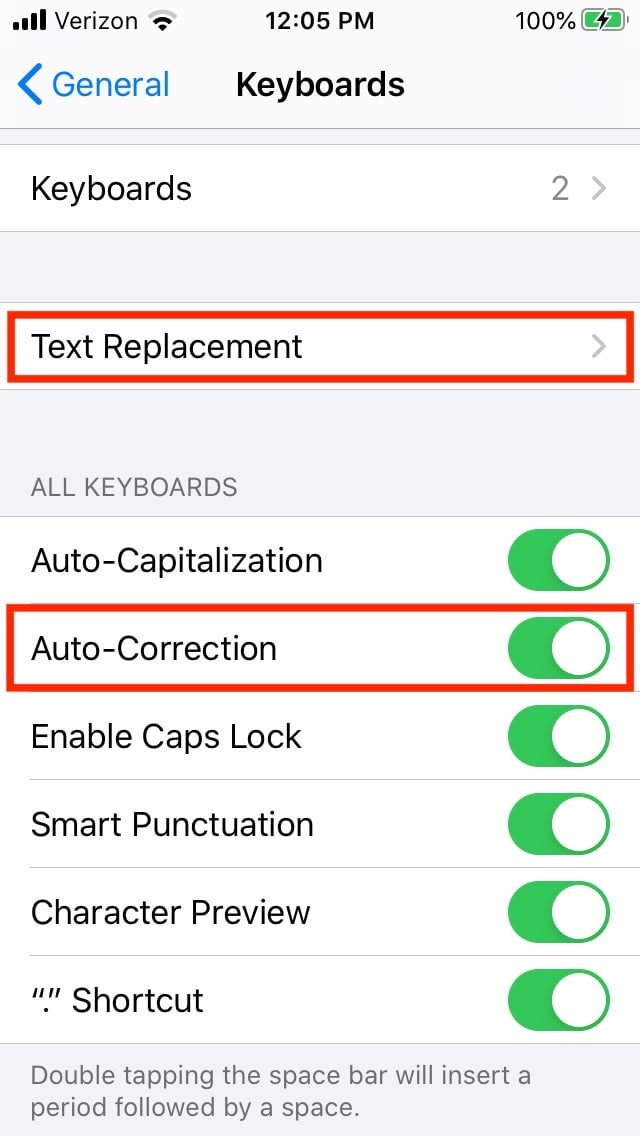
On your iPhone, navigate to Settings > General > Keyboard > Text Replacement. In the top right corner of your screen, tap the “+” button. Now, add the irreverent terms your wicked heart desires.
Join 500,000+ readers who start their day with Quartz.
By subscribing, you agree to our Terms of Service and Privacy Policy.
You don’t have to fill in the “Shortcut” field, but it can be useful for commonly corrected terms (e.g., to ensure “ducking” never shows up in a text again). Tap “Save,” and your dirty dictionary is ready.
Text replacement is a nifty feature, but it’s not your only option. To circumvent Apple’s paternalism, you can also add swear words as contacts, or turn off autocorrect (not recommended). Under Settings > General > Keyboard, toggle “Auto-Correction.”
Unfortunately, these tactics aren’t foolproof. As The Verge’s Tom Warren points out, the iPhone’s swipe-to-type keyboard tries to keep you from swearing like a sailor—even after training your keyboard or while using keyboard shortcuts. Warren recommends the add-contact method.
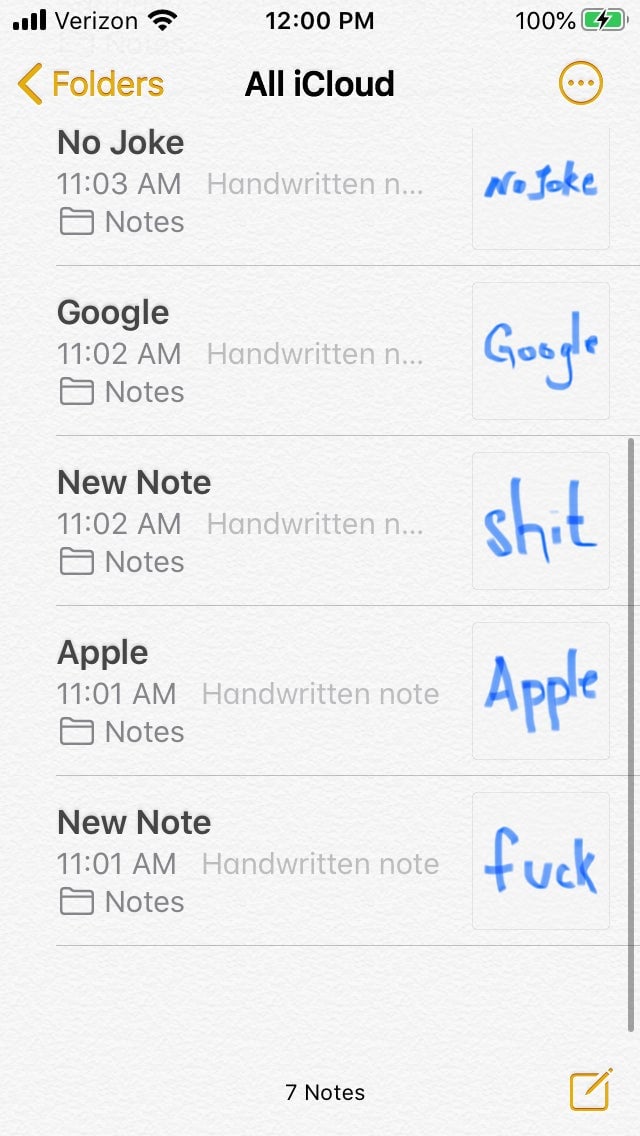
In the Notes app, curse words don’t get equal recognition either. My iPhone 6S (running iOS 13.3, the latest iPhone operating system) suggests titles for most handwritten notes, but it doesn’t provide them for scribbled swears. Instead, they default to the drab “New Note.”
Apple did not immediately respond to a request for comment about its profanity filters or how to avoid them. Siri, though, told me to “duck off.” (Just kidding.)
It’s much easier to get around Google’s filters than Apple’s.
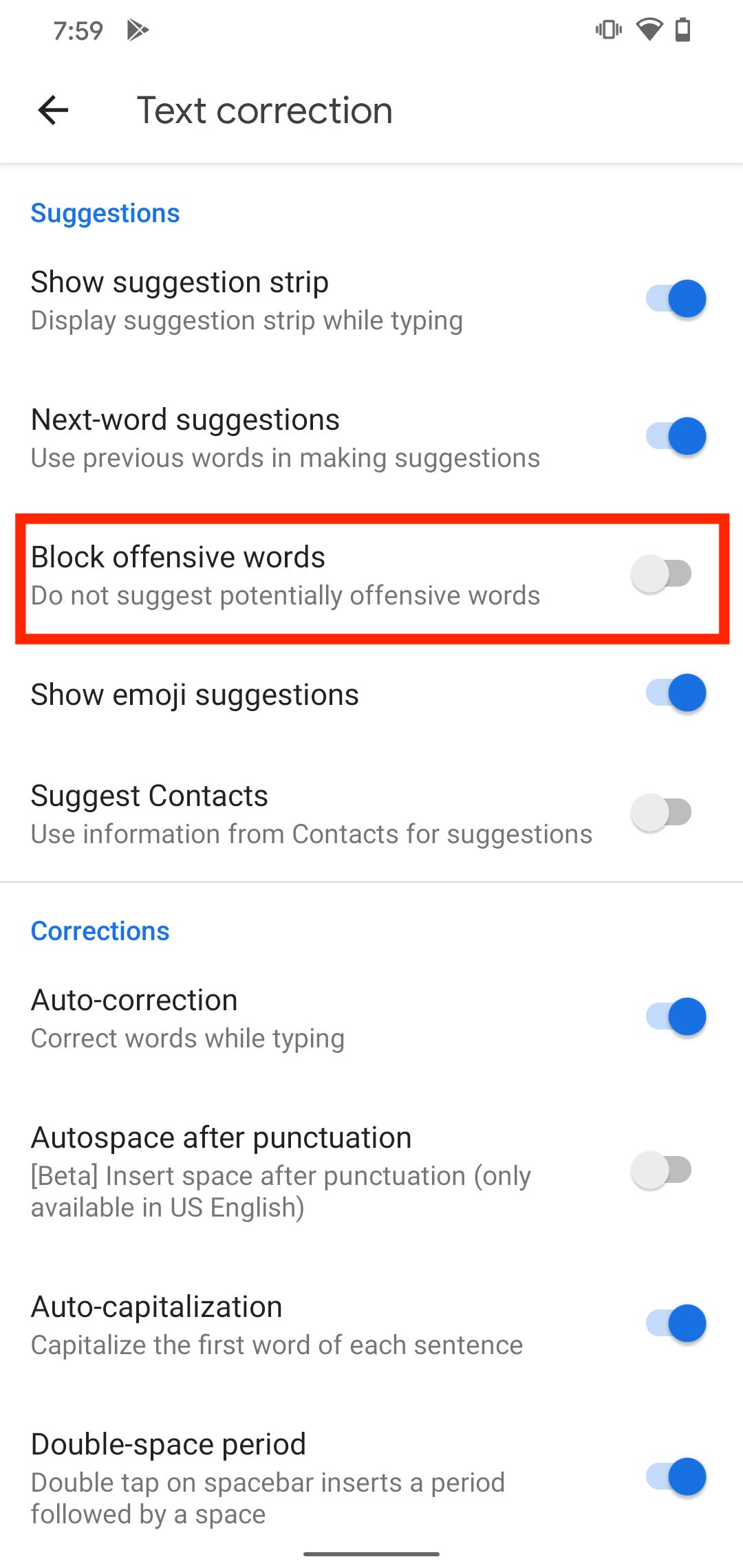
To adjust Gboard, the Google keyboard on an Android device, navigate to settings—on the keyboard, long-press the comma and the gear (settings) icon should pop up. Under “Text correction,” switch off “Block $SQ offensive words.” Mischief managed.
If you use Google’s voice typing feature, you may need to toggle the profanity filter under that category, too.
Once more, you’re free to use a well-placed curse. Heck, you can even tell this author to “go to hell.”
