
Even if some of us have no idea what online cookies are, we accept a ton of them every day. Not only are they a privacy concern, but they also take up memory on your device.
All the websites you've ever visited are still hogging up space on your iPad. Take a minute out to clear them
Even if some of us have no idea what online cookies are, we accept a ton of them every day. Not only are they a privacy concern, but they also take up memory on your device.
Refer to this helpful guide for a detailed and easy lesson on internet cookies. For the scope of this piece, all you need to know is that every time you click on ‘Accept Cookies’ or even visit a site, you’re putting a bunch of files on your device. These files pile up over time, slow your iPad down, and hog up space.
If you frequently use Safari on your iPad, you probably have a lot of passwords, cookies, site permissions, and other login info in your Safari cache. It’s a good habit to clear that from time to time.
Note that this will require re-entering login credentials or other personal info on some sites since clearing your cache will make your Safari brand new again. Also, note that this will only clear your Safari data, not your browsing history, and save website data from other apps on your iPad.
While at it, you might also want to clear your iPhone’s cache and help speed it up.
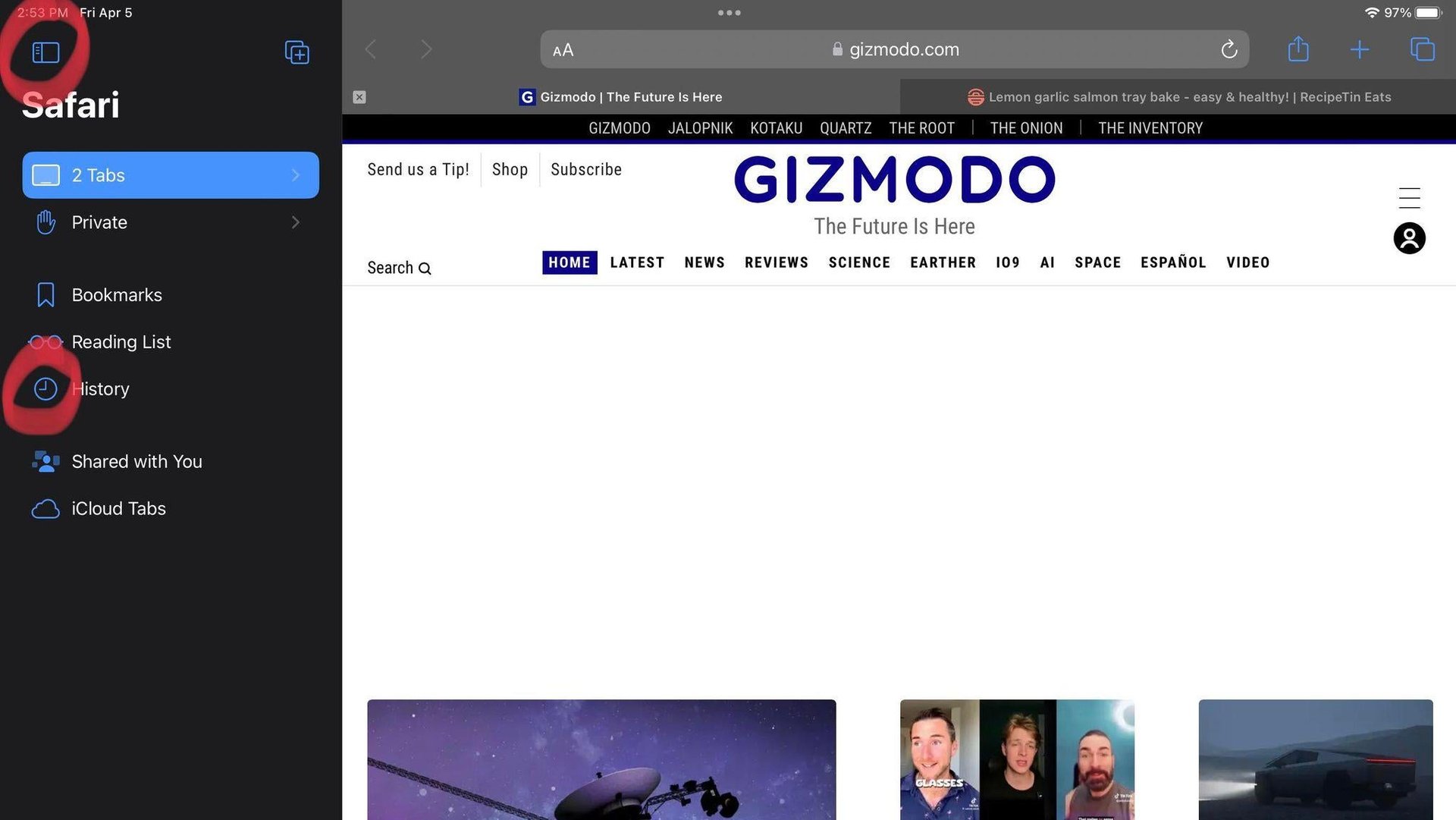
To clear the cache on your iPad, open Safari > tap on the Show Sidebar icon on the top-left > click on the History icon > and tap Clear. Both of these icons are highlighted in the screenshot above. Clicking on Clear will show you multiple timeframes. If you want all your cache deleted, pick ‘All time.’
Join 500,000+ readers who start their day with Quartz.
By subscribing, you agree to our Terms of Service and Privacy Policy.