
So you’ve decided to go off the grid with your iPhone. There are legitimate reasons for shutting off Find My iPhone, like when taking in the device for repair or selling it to another party, so this walkthrough is for you.
Make your iPhone's location data incognito forever by shutting off Find My
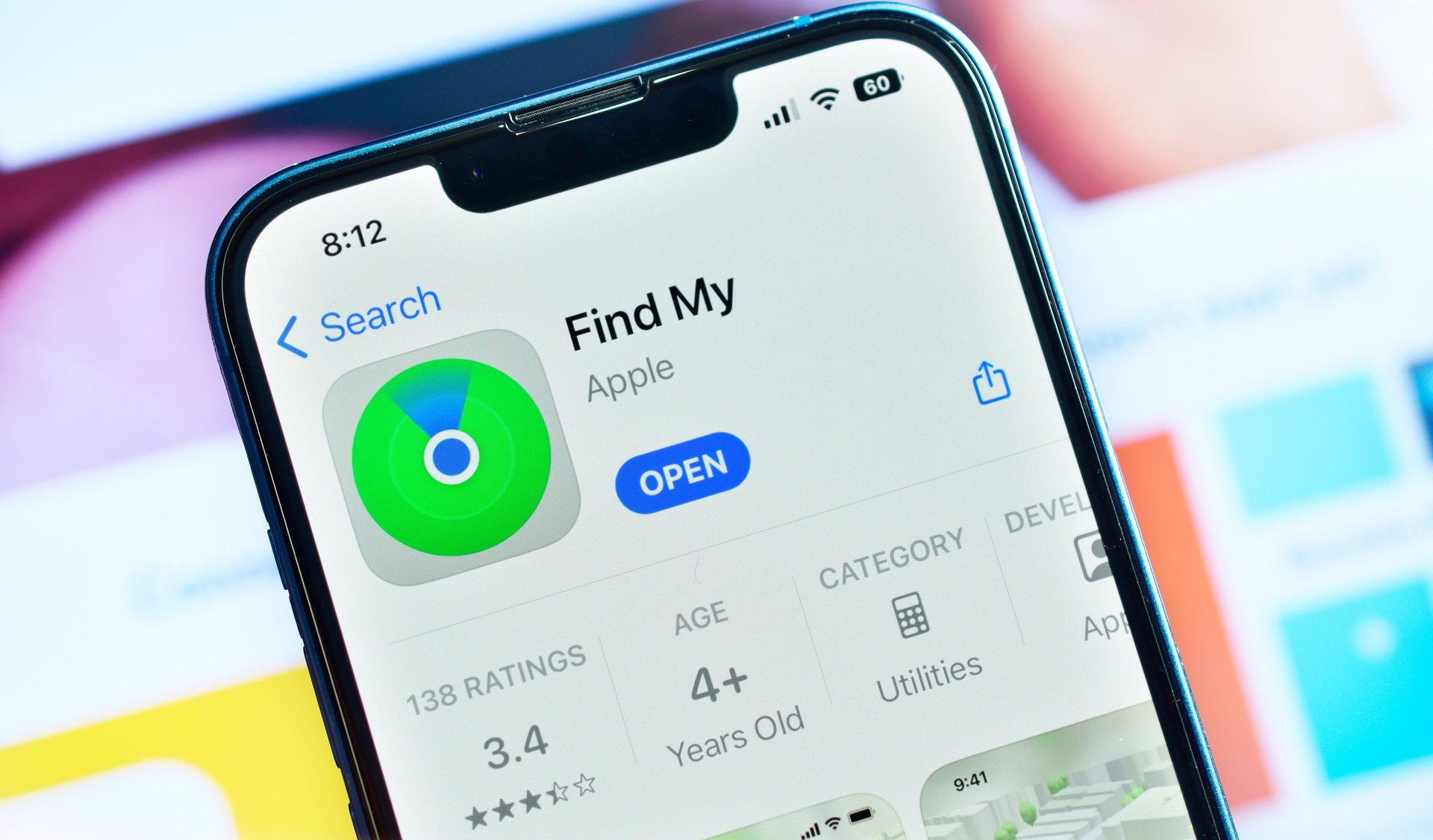
So you’ve decided to go off the grid with your iPhone. There are legitimate reasons for shutting off Find My iPhone, like when taking in the device for repair or selling it to another party, so this walkthrough is for you.
You might also consider shutting off Find My iPhone if you have other Apple $AAPL products synced with your account back at home and are attempting to go full incognito.
There are reasons to shut off Find My iPhone and reasons not to. Read on to find out how, when, and why.
My favorite way to change any setting on the iPhone is to tap on the Search button from the Home screen and type in the setting in question. The only issue with taking this method for this particular capability is that it will take you to Find My, the app you use to share your location with friends. If you want to approach it from the Settings panel, tap there first.
In the Settings app, tap on your Apple ID profile photo, then tap on the Find My option in the second block. At the top, you can tap into Find My iPhone and toggle the ability on or off. Remember to turn off Find My on your Mac if you’re deep in the Apple ecosystem.
When you turn off Find My, you turn off location tracking on your device and Activation Lock, which lets you remotely shut down the device if it gets snatched or lost. You can turn this feature on and off as you need, but remember to turn it back on if you think it’s something you’ll rely on.
Apple suggests you disable Find My if you send your iPhone for service at its Genius Bar or elsewhere. It’s also a courtesy to disable and factory reset the device if you’re selling it to recuperate some cash.
Join 500,000+ readers who start their day with Quartz.
By subscribing, you agree to our Terms of Service and Privacy Policy.