
Just as screenshotting on an iPad works, restarting an iPad works differently on devices with and without a home button.
Instructions for how to restart an iPad, or force restart it if it isn't responding
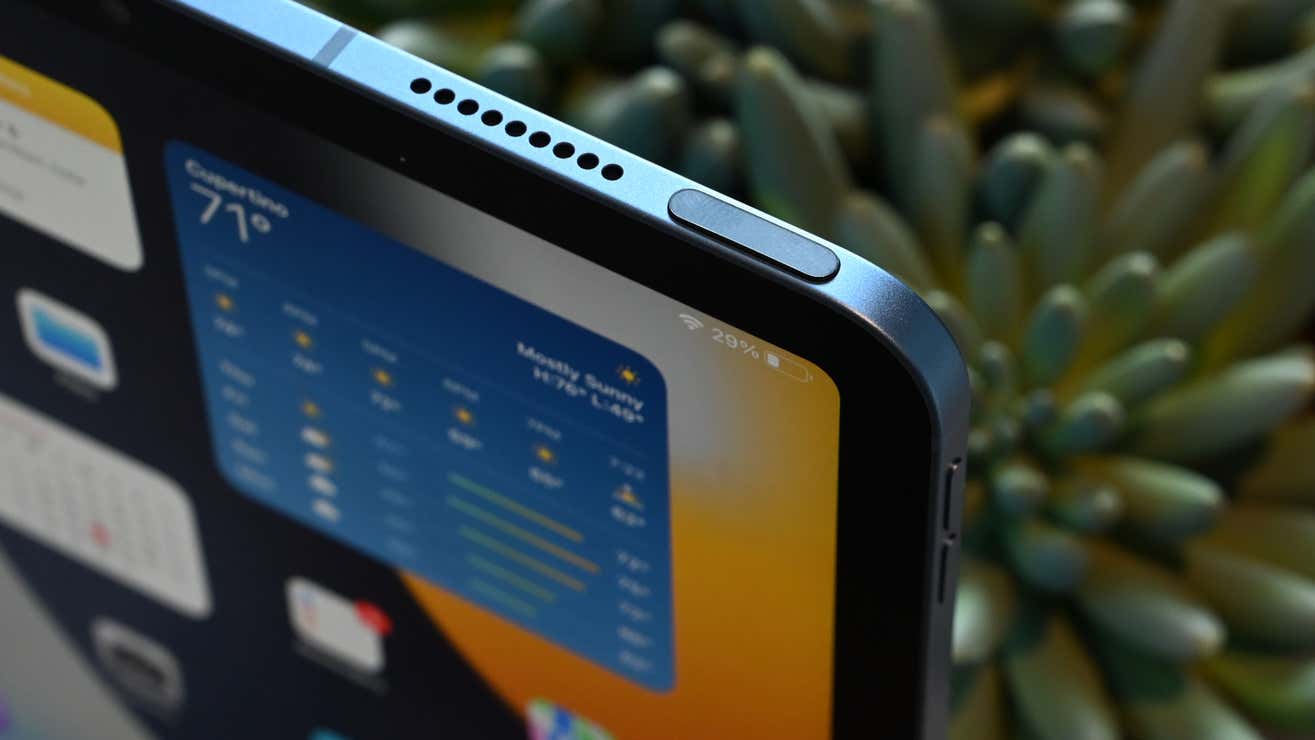
Just as screenshotting on an iPad works, restarting an iPad works differently on devices with and without a home button.
Press and hold just the top button until a power-off slider appears on your screen. Drag the slider to the right and give your iPad around 30 seconds to shut down.
To turn it back on, press and hold the top button again. You can release when you see an Apple logo on your display.
Press and hold any of the two volume buttons along with the top button until you see a power-off slider appear on your screen. Drag the slider all the way to the right, and wait for your iPad to turn off for about 30 seconds.
To turn it back on, press and hold just the top button until you see the Apple logo on your display.
If your iPad is frozen, here’s what you can do. On an iPad with a home button, press and hold the top and home buttons simultaneously. You can release both buttons when you see an Apple logo appear.
On an iPad without a home button, press and quickly release the volume up button, then press and quickly release the volume down button, and then press and hold the top button. You can release the top button when the Apple logo appears.
Join 500,000+ readers who start their day with Quartz.
By subscribing, you agree to our Terms of Service and Privacy Policy.